Have you ever noticed when you post a picture on Twitter
that parts might be cut off in the in-stream preview in your timeline? This can be a curse or it can be your golden
ticket to create interactive tweets that create huge audience engagement.
In today’s post, I will walk you through the steps to create
your own interactive tweet on Twitter.
Step
1: Develop an Engaging Question
Before you begin to create our images for your interactive
tweet, you must create an engaging question that will cause your audience to
want to click on your images and play the guessing game.
Do you have a theme or an area you are trying to highlight
in your company or your school district? Interactive tweets are great way to
communicate your message.
In our district, we have been developing content that
debunk myths about public schools. One area of concern in our state is that
graduation rates are dropping for public schools in Texas. So for are
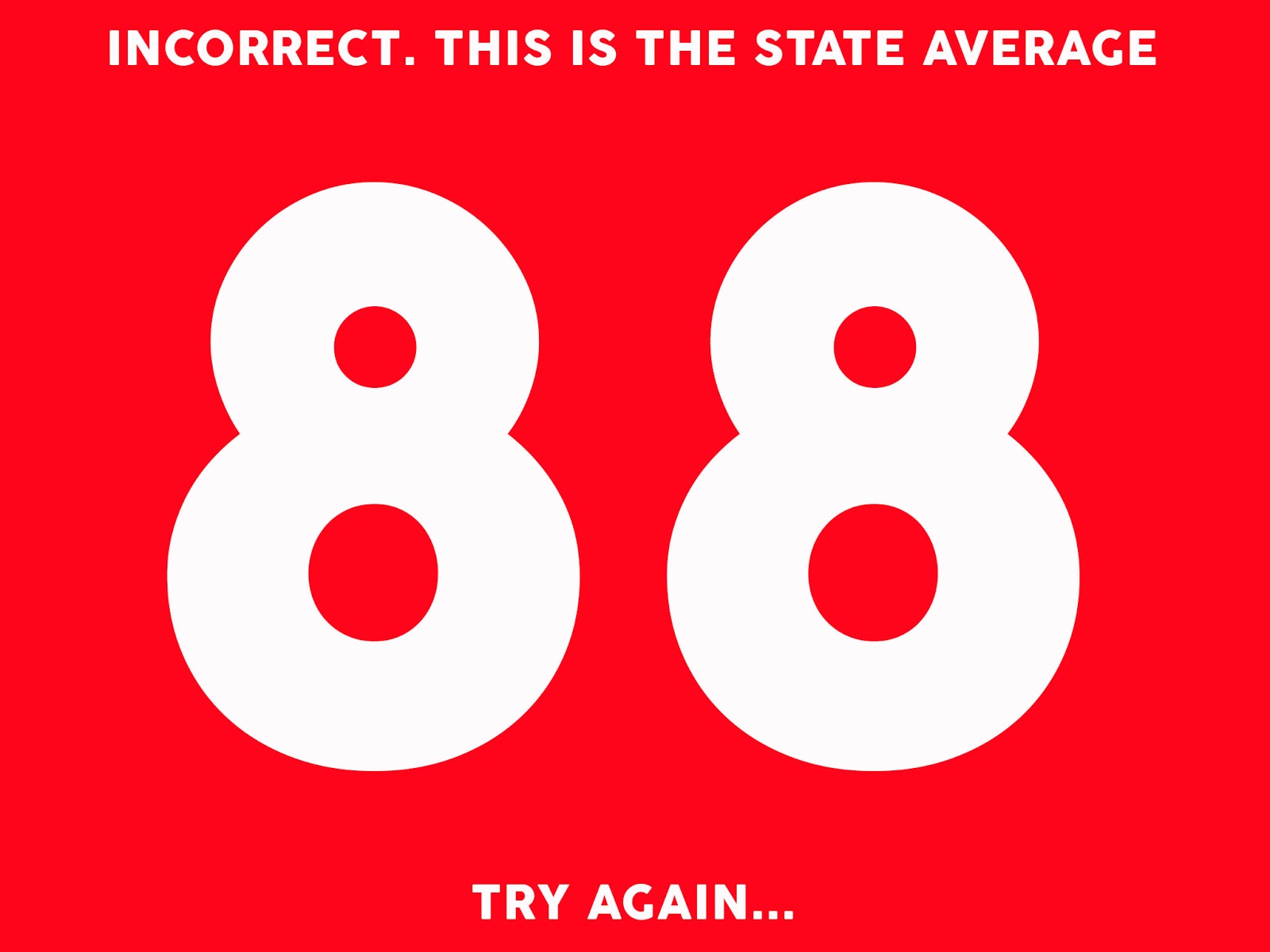
interactive tweet, we asked the simple question: Do you know the graduation rate
for high schoolers in the Carrollton- Farmers Branch School District.
After we developed our question, the answers were equally
important. And for the interactive tweet
to work, we needed four answer choices for our audience to choose from. We
choose a low graduation rate, the national graduation rate, the State of Texas
graduation rate, and then our last answer choice was the graduation rate for
CFBISD, which happens to be the highest.
Step
2: Creating Your Images
**Disclaimer
– I use Photoshop, but there are free programs that can achieve these steps
Guessing at what Twitter’s in-stream preview dimensions are
not going to work for creating an interactive tweet. Instead of playing a
guessing game, you need to remember that Twitter’s in-stream preview always has
a 2:1 ratio. Which means that any horizontal image will be cut-off at the top
and bottom (Social Media Examiner)
Knowing this 2:1 ratio, you can calculate exactly where
Twitter is going to cut your image, which makes creating a interactive tweet
much easier.
Social Media Examiner has a wonderful article on creating
the perfect image for your tweets. Their article is what I followed to create
my answer choices for my interactive tweet.
The article can be found here:
Here are Social Media Examiner’s instructions from that article on how to
create the perfect image:
Before
you start, find out the dimensions of the image you’re working with, and
then find the center of the image.
The
full image, divided horizontally and vertically.
Divide
the width of your image in half to find the 2:1 ratio and the number of
vertical pixels you have to work with.
For
example, if the original dimensions of the above image were 2048×1536, the
dimensions of the in-stream preview would be 2048×1024. That gives you the
number of vertical pixels (1024) and the 2:1 ratio that Twitter will shrink
down to 440×220.
Now
divide the in-stream preview height in half. Using the same example as
above, you would divide 1024 in half to get 612.
From
the horizontal line in the center of your image (the Y axis), move up that
number of pixels (e.g., 612) on the Y-axis and draw another horizontal line. Do
the same thing again, but moving down the Y-axis from the center of the image.
Boom!
Everything inside that blue box is the in-stream preview. The blue box aligns
with Twitter’s 2:1 template and is centered vertically to keep the best part of
your picture visible.
Here are the dimensions I choose for my answer choices:
When you are creating your answer choice images, you must
think to yourself what do you want to be shown to your audience (their guesses)
and what do you want o reveal to them when they click on an answer choice.
For my images, I put the percentage (my answer choice) in
the in-stream preview, and then above and below the preview I let them know if
they were correct, and then gave them a hint if they were wrong.
You can see from the dimensions we spoke of earlier in the article
that the “93%” will be visible in the in-stream preview, and everything else
above and below the blue lines will on be visible when the reader clicks on the
image. In this case, “Incorrect. That
was last year’s number” and “try again” were only visible when someone clicked
the image.
Step
3: Construct Your Actual Tweet
Once you have your four images created, it is time to
construct the tweet you are going to post to your timeline. And with Twitter introducing the option to
post four images in your tweet instead of just one last year, creates the perfect
scenario to create your interactive tweets.
The first step is to type your question you created which
will be the foundation for your interactive tweet. Try not to make this too long. Remember that
Twitter only allows 140 characters and your four images will use 25 of those
characters.
My question was short and sweet:
"Do you know the graduation rate in CFBISD in 2015? Click the correct number. #cfbisd"
Make sure to include a hashtag to classify your tweet and
maybe a link so your audience can get more information about your topic.
Next you need to attach your four pictures to your
tweets. Examine the order when you
attach pictures. It might be important
for you to have your answer choices in a certain order.
Once you feel comfortable with your Tweet it is ready to
post. Don’t worry about what it looks like before you post. Some apps or Twitter publishing programs will
make it look like too much of you image will be revealed to your audience, but
if you followed the above dimensions, it should look great once it is
published.
I wrote a post on creating the perfect Twitter post that you
might find useful during this step which can be found here:
We saw awesome results in audience engagement with our
interactive tweets. Hopefully you will
see that same type of engagement with your audience.
If you have any questions, or would like to share your own
interactive tweet, leave me a message in the comment section below.